

Essential WordPress File Security Tips to Keep Your Website Safe
Protecting your WordPress files is one of the most important steps in securing your website against hackers, malware, unauthorized access, and accidental data loss. While WordPress provides a secure foundation, improper file permissions, outdated plugins, and poorly configured hosting environments can expose critical website files to potential threats.
Whether you’re managing a small business website or a large ecommerce store, understanding how to protect WordPress files can help prevent security breaches and maintain your website’s integrity.
The good news is that you don’t need to rebuild your entire website to improve file security. By implementing several proven security practices, you can significantly reduce the risk of unauthorized access and malicious file modifications.
Why Is WordPress File Security Important?
Every WordPress website consists of thousands of files responsible for operating the CMS, displaying content, and managing website functionality. These include core WordPress files, themes, plugins, uploaded media, and important configuration files.
Some of these files contain sensitive information or control critical website operations. For example, the wp-config.php file contains database connection settings and authentication-related configuration values.
If an attacker gains access to important WordPress files, they may be able to inject malicious code, redirect visitors, steal sensitive information, or disrupt website functionality.
Protecting WordPress files isn’t just about preventing hackers from downloading information. It’s also about controlling who can modify files, which directories can execute scripts, and how quickly unauthorized changes can be detected.
Understand the WordPress File Structure
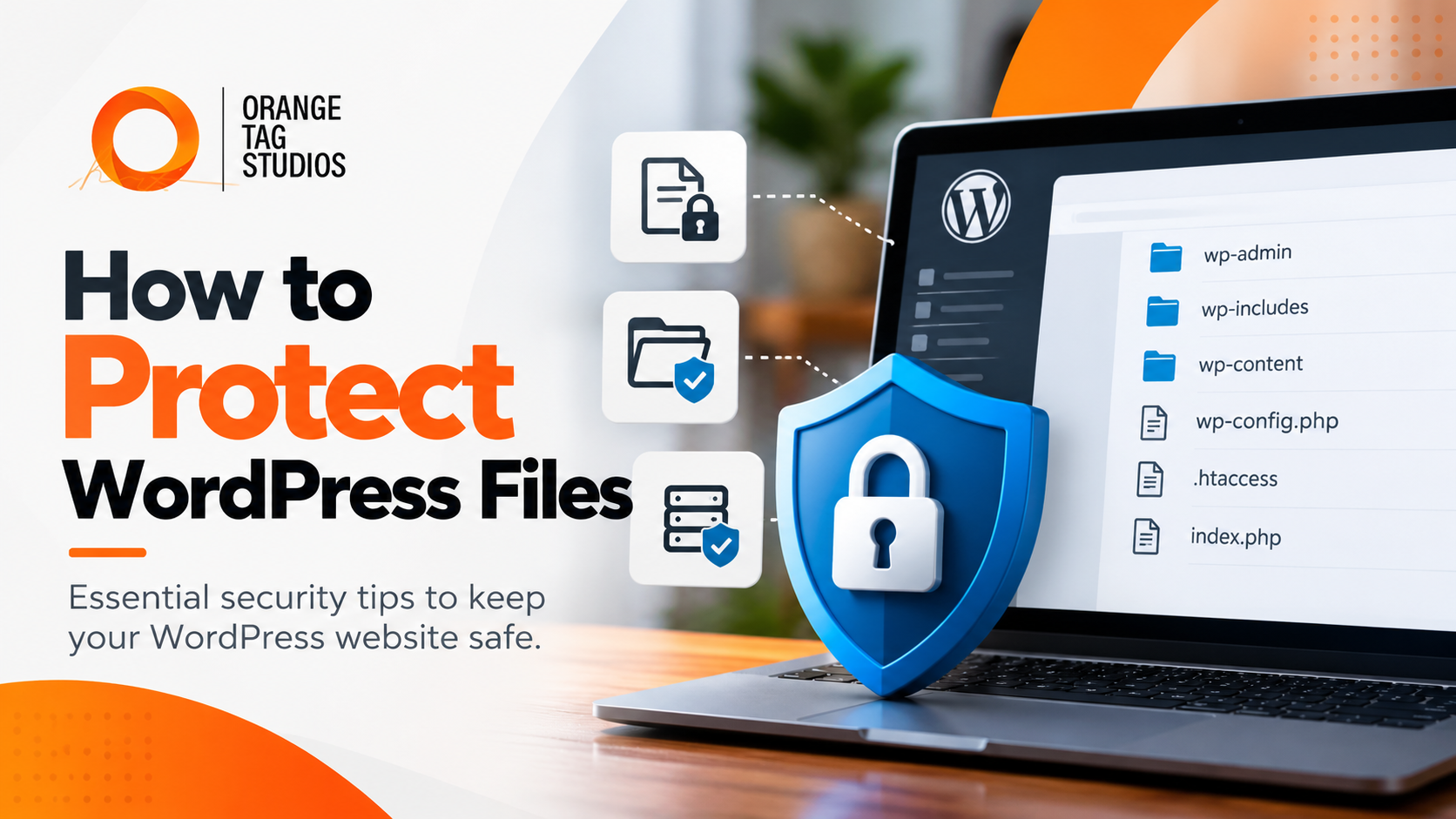
Before changing security settings, it’s helpful to understand how WordPress organizes its files. Most installations contain several important directories and configuration files that require different levels of protection.
| File or Directory | Purpose |
|---|---|
wp-admin | Contains files used by the WordPress administration interface |
wp-includes | Contains core WordPress functions and libraries |
wp-content | Stores themes, plugins, uploads, and other website content |
wp-config.php | Contains database credentials and configuration settings |
.htaccess | Controls Apache server behavior, redirects, and certain access restrictions |
wp-login.php | Processes WordPress login requests |
index.php | Serves as an entry point for WordPress requests |
Each component serves a different purpose, meaning security settings should be applied carefully. Restricting access too aggressively can prevent WordPress from functioning properly, while allowing unnecessary access can expose your website to attacks.
1. Set Proper WordPress File Permissions
One of the most effective ways to protect WordPress files is by configuring file and directory permissions correctly.
File permissions determine which users and processes can read, modify, or execute files on your hosting server. Incorrect permissions can allow unauthorized processes to alter website files or introduce malicious code.
For many standard Linux-based WordPress installations, the following permissions are commonly recommended:
| File Type | Common Permission |
|---|---|
| WordPress directories | 755 |
| Standard WordPress files | 644 |
wp-config.php | 400 or 440, where compatible |
| Sensitive server files | Restricted according to hosting requirements |
These are general guidelines, not universal settings. Your hosting environment, file ownership, and PHP configuration determine which permissions are appropriate.
One particularly dangerous setting is 777, which allows anyone with filesystem access to read, write, and execute within the permitted scope. WordPress directories should generally never require this level of access.
If you’re unsure which permissions your hosting provider requires, consult your server administrator before making changes. Incorrect permissions can break updates, media uploads, or the website itself.
2. Protect the wp-config.php File
The wp-config.php file is one of the most sensitive files in a WordPress installation because it contains information necessary for connecting to your website’s database.
If an attacker obtains the contents of this file, they may gain access to database credentials and other security-related configuration values.
WordPress supports storing wp-config.php one directory above the installation in certain configurations, potentially placing it outside the publicly accessible web root. However, this approach is not appropriate for every hosting environment and must be implemented carefully.
For Apache servers that support .htaccess rules, you can add the following directive to deny direct web requests for the configuration file:
<Files "wp-config.php">
    Require all denied
</Files>
This adds protection against direct HTTP access. It does not replace secure file ownership, filesystem permissions, and proper hosting configuration.
Websites running Nginx require equivalent server-level rules rather than .htaccess directives.
3. Disable the WordPress Theme and Plugin File Editor
WordPress includes built-in file editors that allow administrators to modify plugin and theme code directly from the dashboard.
Although convenient for developers, these editors introduce unnecessary risks on production websites. If an attacker compromises an administrator account, the file editor may provide another way to modify executable PHP code.
Fortunately, WordPress allows you to disable this functionality by adding the following line to your wp-config.php file:
define( 'DISALLOW_FILE_EDIT', true );This removes access to the built-in theme and plugin file editors, helping prevent accidental changes and limiting one method an attacker could use after obtaining administrator privileges.
It is important to understand that disabling file editing does not prevent every type of malicious file modification. Administrators may still have access to plugin installation and upload functionality, while attackers who compromise the server can potentially modify files directly.
Nevertheless, disabling unnecessary editing capabilities is a worthwhile security measure for many production websites.
4. Prevent PHP Execution in the WordPress Uploads Directory
The WordPress uploads directory is designed to store media files such as images, videos, and documents. Under normal circumstances, files uploaded to this directory shouldn’t need to execute PHP scripts.
However, vulnerabilities in plugins or upload-handling functionality can sometimes allow attackers to place malicious files on a website.
If an attacker successfully uploads a PHP file and the hosting environment allows it to execute, they could potentially run unauthorized code on the server.
One way to reduce this risk is to configure your server to prevent PHP execution within the uploads directory.
For compatible Apache configurations, a .htaccess file inside /wp-content/uploads/ can include:
<FilesMatch "\.php$">
    Require all denied
</FilesMatch>
This is an additional layer of protection, not a universal solution. Depending on how PHP is configured, broader server-level restrictions may be necessary to prevent execution of all relevant script types and extensions.
Nginx servers require corresponding server configuration changes.
Before implementing these restrictions, make sure they are compatible with your hosting setup and any legitimate functionality that relies on the uploads directory.
5. Restrict Access to Sensitive WordPress Files
Certain files within a WordPress installation should never be publicly accessible. These may include configuration files, debugging logs, database exports, temporary backups, and files containing credentials.
Attackers frequently scan websites for exposed files because they may reveal valuable information about the website’s infrastructure.
For Apache websites, access to selected sensitive files can be restricted using rules such as:
<FilesMatch "^(wp-config\.php|\.htaccess|\.htpasswd|debug\.log)$">
    Require all denied
</FilesMatch>
It is also important to avoid storing database backups, .env files, or other sensitive documents inside publicly accessible directories.
Whenever possible, store sensitive backups and configuration resources outside the website’s public document root.
Access restrictions should always be tested after implementation to ensure they do not interfere with legitimate website functionality.
6. Keep WordPress Core, Plugins, and Themes Updated
Outdated software is one of the most common sources of WordPress security vulnerabilities.
WordPress core, plugins, and themes frequently receive updates that address bugs, compatibility problems, and security weaknesses. When these updates aren’t applied, attackers may exploit publicly documented vulnerabilities in older versions.
Protecting your WordPress files therefore requires more than adjusting server permissions. You must also keep the software responsible for creating, accessing, and modifying those files secure.
Website administrators should regularly check for updates, remove abandoned plugins, and avoid using themes or extensions that no longer receive developer support.
For business-critical websites, updates should ideally be tested in a staging environment before being deployed to production. This reduces the risk of compatibility problems while allowing security fixes to be applied promptly.
7. Use Secure File Transfer Methods
Website administrators and developers frequently need to upload, download, or modify WordPress files. The method used to transfer those files can affect website security.
Traditional FTP may transmit credentials and data without encryption, potentially exposing sensitive information to interception.
Instead, developers should use secure transfer methods such as SFTP or SSH when supported by their hosting provider.
SFTP encrypts file transfers and authentication information, helping protect data while it travels between your computer and the hosting server.
Access credentials should also be stored securely, and individual developers should receive their own accounts whenever possible rather than sharing a single master login.
Once a developer or contractor no longer requires access, their credentials should be revoked.
8. Monitor WordPress Files for Unauthorized Changes
Even with strong preventative measures, it’s important to monitor your website for suspicious activity.
File integrity monitoring tools can detect when website files are modified, added, or removed. This can help identify malicious changes that might otherwise go unnoticed.
For example, if an attacker modifies a plugin file to inject malicious code, a file monitoring system may detect that the file no longer matches its expected version.
Security monitoring solutions such as Wordfence or other reputable website security platforms can help identify modified files, suspicious uploads, and known malware patterns.
However, file monitoring should be configured carefully to account for legitimate website updates. WordPress, plugins, and themes naturally modify files during maintenance, and these changes shouldn’t automatically be treated as malicious.
For more advanced environments, server-level monitoring and centralized security logging can provide additional visibility.
9. Maintain Regular WordPress File Backups
Backups are an essential component of WordPress security because even well-protected websites can experience unexpected failures or successful attacks.
A reliable backup strategy should include both website files and the WordPress database. Backing up only one may leave you unable to restore the complete website.
Backups should be created regularly, stored securely, and retained separately from the primary hosting environment.
For example, if a website is compromised and its backups are stored on the same server with identical access permissions, an attacker may be able to delete or modify those backups as well.
A strong backup strategy should include automated backups, off-site storage, appropriate retention periods, and occasional restoration tests.
The ability to restore a clean version of your website is just as important as preventing the initial attack.
10. Choose Secure WordPress Hosting
Your hosting environment plays a major role in protecting WordPress files.
Even a properly configured WordPress installation can be exposed to unnecessary risks if the underlying server is outdated, poorly maintained, or incorrectly configured.
A reputable WordPress hosting provider should offer security features such as server-level isolation, supported PHP versions, malware monitoring, encrypted connections, backup capabilities, and appropriate access controls.
Some managed WordPress hosting providers also offer automatic updates, staging environments, and additional protection against common website attacks.
For businesses handling customer information or operating ecommerce websites, investing in quality hosting can significantly improve the overall security and reliability of the website.
11. Limit Access to WordPress Files and Administrator Accounts
Protecting WordPress files also means controlling who has permission to change them.
Not every website user needs administrator privileges, and not every developer requires full access to the hosting server.
WordPress provides different user roles that allow businesses to assign appropriate permissions based on responsibilities. Editors, authors, and contributors can manage content without receiving the same level of administrative control as a website owner.
Organizations should follow the principle of least privilege, giving users only the access necessary to complete their tasks.
Administrator accounts should use strong passwords and multifactor authentication, and unused accounts should be removed or disabled.
The same principle applies to hosting control panels, SSH accounts, deployment systems, and other services capable of modifying website files.
12. Use a Web Application Firewall
A web application firewall (WAF) can provide another layer of protection by filtering potentially malicious requests before they reach vulnerable website functionality.
Depending on the solution, a WAF may help identify and block certain exploit attempts, suspicious requests, and automated attacks targeting WordPress installations.
Some hosting providers include server-level firewall protection, while services such as Cloudflare and specialized WordPress security platforms offer additional filtering capabilities.
Although a firewall cannot guarantee that every attack will be blocked, it can help reduce exposure to common threats.
For the best results, firewall protection should complement proper file permissions, secure hosting, software updates, and access controls rather than replacing them.
Common Mistakes That Put WordPress Files at Risk
Many WordPress security problems originate from configuration or maintenance mistakes rather than vulnerabilities in the WordPress core itself.
Some of the most common mistakes include:
- Setting file or directory permissions to
777 - Leaving outdated or abandoned plugins installed
- Using unsecured FTP connections
- Keeping publicly accessible website backups
- Allowing unnecessary administrator access
- Leaving the built-in file editor enabled without a business need
- Failing to restrict executable uploads
- Ignoring file integrity warnings
- Using outdated hosting software
- Failing to test website backups
Avoiding these mistakes can make a substantial difference in your website’s security.
Can WordPress Files Be Completely Protected From Hackers?
No website can be guaranteed to be completely immune to cyberattacks.
Even organizations with dedicated security teams can experience breaches caused by newly discovered vulnerabilities, compromised credentials, or configuration mistakes.
The objective of WordPress security is to reduce the likelihood of an attack, limit the potential damage, and improve the ability to detect and recover from security incidents.
This approach is often referred to as defense in depth, meaning multiple independent layers of security work together to protect the website.
File permissions, restricted access, software updates, server protections, monitoring, and backups all serve different purposes. When combined, they create a stronger security strategy than relying on any individual measure.
How to Protect WordPress Files: Final Thoughts
Protecting WordPress files requires a combination of secure configuration, responsible website management, and ongoing maintenance.
Proper file permissions, restricted access to sensitive configuration files, disabled dashboard file editing, secure uploads, and regular updates are all important steps toward reducing security risks.
However, website security doesn’t stop after these settings have been configured. As WordPress and its extensions evolve, new vulnerabilities may be discovered, and security practices should be reviewed regularly.
For businesses relying on WordPress to generate leads, support customers, or process online transactions, protecting website files should be considered an ongoing responsibility rather than a one-time task.
Professional WordPress Development and Security With Orange Tag Studios
At Orange Tag Studios, we understand that a successful website needs more than an attractive design. It also needs a reliable foundation that supports long-term performance, maintainability, and security.
Our team specializes in custom WordPress design and development, helping businesses build websites with clean code, thoughtful architecture, and carefully selected functionality.
Whether you’re developing a new website, improving an existing WordPress installation, or looking to reduce unnecessary technical complexity, we can help you create a website designed for long-term success.
Contact Orange Tag Studios to discuss your WordPress website and development needs.