

Website speed plays an important role in both user experience and search engine optimization (SEO). If your WordPress website takes too long to load, visitors may leave before they ever see your content, products, or services.
When testing your website with Google PageSpeed Insights, you may encounter three important performance metrics: Largest Contentful Paint (LCP), First Contentful Paint (FCP), and Time to First Byte (TTFB).
These measurements help identify different stages of your website’s loading process. Understanding what they mean and how to improve them can help you build a faster, more efficient WordPress website.
In this guide, we’ll explain how to improve LCP, FCP, and TTFB in WordPress, identify common performance problems, and walk through practical solutions.
What Are LCP, FCP, and TTFB in WordPress?
Before optimizing your WordPress website, it’s important to understand what each metric measures.
Largest Contentful Paint (LCP)
Largest Contentful Paint measures how long it takes for the largest visible content element on a webpage to appear.
This is often a large banner image, featured image, or prominent block of text.
For example, if your homepage features a large image introducing your business, LCP measures when that image finishes rendering.
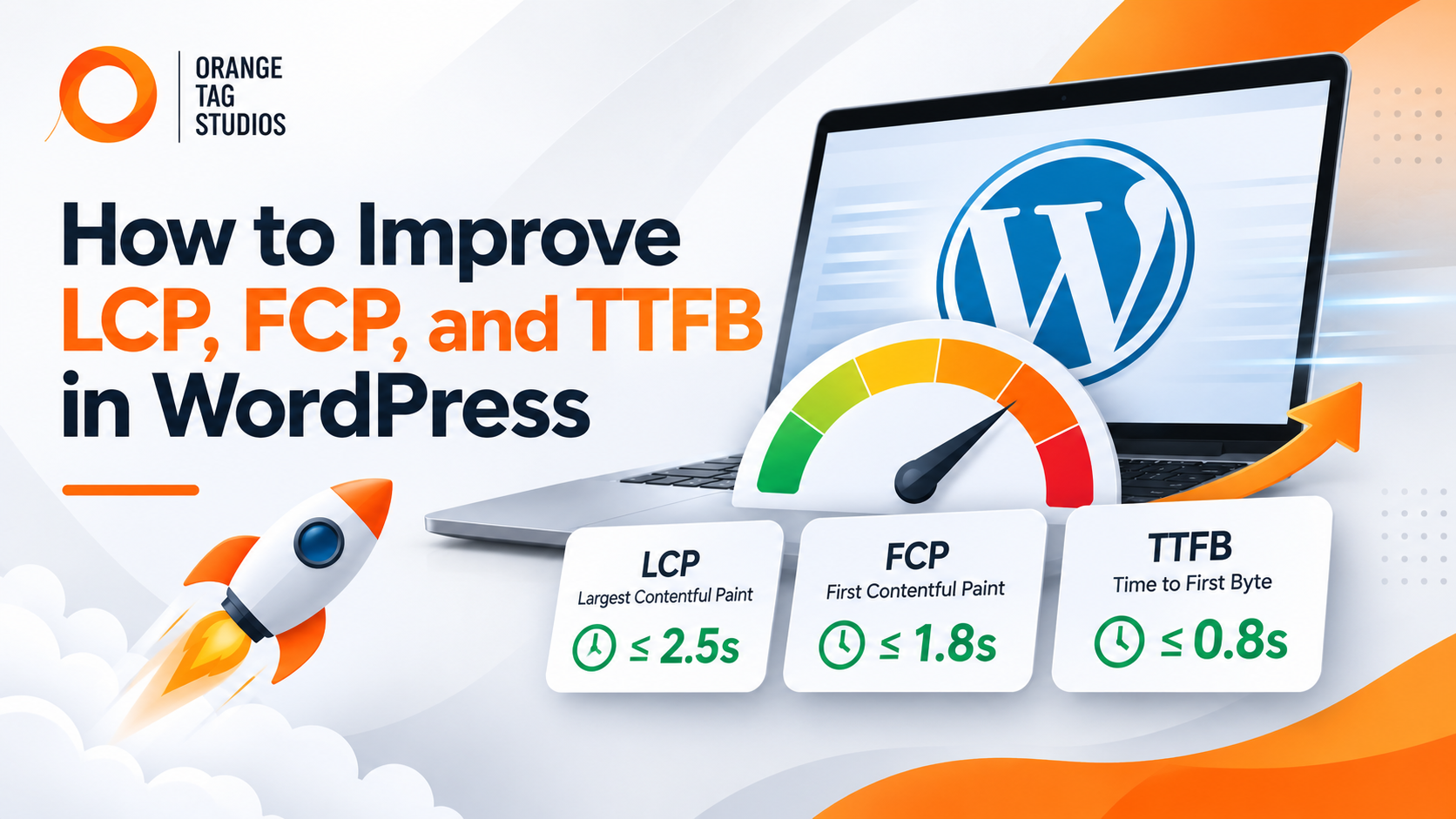
Google recommends an LCP of 2.5 seconds or less for a good user experience.
First Contentful Paint (FCP)
First Contentful Paint measures how quickly the browser displays the first visible piece of content.
This could be text, an image, or another visual element.
FCP helps determine when visitors first see something happening on your website rather than staring at a blank screen.
A good FCP score is 1.8 seconds or less.
Time to First Byte (TTFB)
Time to First Byte measures how long it takes for a browser to receive the first byte of a server’s response after requesting a webpage.
TTFB includes factors such as network delays, connection setup, and server processing.
A slow TTFB can delay everything that follows, including FCP and LCP.
Google’s recommended target for a good TTFB is 0.8 seconds or less.
What Are Good LCP, FCP, and TTFB Scores?
| Metric | Good | Needs Improvement | Poor |
|---|---|---|---|
| LCP | 2.5 seconds or less | 2.5–4 seconds | Over 4 seconds |
| FCP | 1.8 seconds or less | 1.8–3 seconds | Over 3 seconds |
| TTFB | 0.8 seconds or less | 0.8–1.8 seconds | Over 1.8 seconds |
LCP is one of Google’s Core Web Vitals. FCP and TTFB are supporting performance metrics that help diagnose loading problems.
These thresholds are generally evaluated using the 75th percentile of real-user page loads.
How to Check LCP, FCP, and TTFB in WordPress
Before making changes, you need to identify which parts of your website are slowing down.
The easiest starting point is Google’s free PageSpeed Insights tool.
Step 1: Test Your Website
Visit Google PageSpeed Insights and enter your website URL.
The tool analyzes your page and provides performance information for mobile and desktop devices.
Step 2: Review Your Performance Metrics
Look for the following measurements:
- Largest Contentful Paint
- First Contentful Paint
- Time to First Byte
- Total Blocking Time
- Cumulative Layout Shift
PageSpeed Insights may also show real-user data when enough information is available.
Pay attention to the specific recommendations provided in your report rather than focusing exclusively on the overall performance score.
Step 3: Identify the Biggest Problems
Common WordPress performance issues include oversized images, slow hosting, excessive JavaScript, render-blocking CSS, and inefficient plugins.
The most effective optimization strategy is to identify the largest bottleneck before making changes.
How to Improve LCP in WordPress
LCP problems are frequently associated with large images, delayed resource loading, and scripts that prevent important content from appearing quickly.
Here are several ways to improve your WordPress LCP score.
1. Optimize Your Largest Images
One of the most common causes of poor LCP is an oversized image near the top of a webpage.
For example, your WordPress homepage might display a large hero image that is significantly larger than necessary.
To improve loading performance:
- Resize images to appropriate display dimensions.
- Compress images before uploading them.
- Use modern image formats such as WebP or AVIF.
- Serve responsive image sizes for different devices.
- Avoid unnecessarily large background images.
WordPress supports responsive images, but poorly configured themes and page builders can still load larger files than necessary.
Image optimization plugins such as ShortPixel, Imagify, and EWWW Image Optimizer can help reduce image sizes.
2. Avoid Lazy Loading Your LCP Image
Lazy loading delays images until they are needed.
This is useful for images farther down a webpage, but it can cause problems when applied to the main image visitors see immediately.
If your hero image is the LCP element, lazy loading it may delay its appearance.
For important above-the-fold images, use normal loading behavior rather than forcing lazy loading.
WordPress includes logic to help prioritize important images, but themes, plugins, or custom code can override that behavior.
3. Prioritize Critical Images
Browsers download multiple resources while loading a page.
Using the fetchpriority attribute can help tell the browser which image should receive higher loading priority.
For example:
<img
  src="hero-image.webp"
  alt="WordPress website design"
  fetchpriority="high"
  loading="eager"
>
This approach can be useful for an important LCP image, but it should be applied selectively.
Setting every image to high priority can reduce the effectiveness of the optimization.
4. Reduce Render-Blocking Resources
CSS and JavaScript can prevent important page content from appearing quickly.
Large stylesheets, third-party scripts, and page-builder assets can all contribute to delayed rendering.
Potential improvements include:
- Removing unused CSS.
- Loading noncritical JavaScript later.
- Reducing unnecessary third-party scripts.
- Minimizing oversized stylesheets.
- Generating critical CSS when appropriate.
Performance plugins such as WP Rocket or LiteSpeed Cache may provide tools for these optimizations, depending on your hosting environment.
Always test your website after enabling CSS or JavaScript optimization features, since aggressive settings can affect layouts and functionality.
How to Improve FCP in WordPress
While LCP measures when the largest visible element appears, FCP focuses on when the browser first displays any content.
Improving FCP often involves reducing the time before your website begins rendering.
1. Eliminate Unnecessary CSS and JavaScript
WordPress themes and plugins frequently load stylesheets and scripts across multiple pages, even when those resources aren’t needed.
For example, a contact form plugin might load JavaScript on every page despite the form appearing only on your contact page.
You can improve performance by preventing unnecessary assets from loading where they aren’t required.
Tools such as Perfmatters and Asset CleanUp can help manage scripts and stylesheets.
However, removing the wrong assets may break website functionality, so test these changes carefully.
2. Optimize Your WordPress Fonts
Custom fonts can delay visible text, particularly when browsers must download font files before displaying content.
To improve font loading:
- Limit the number of font families and weights.
- Use WOFF2 fonts when supported.
- Consider hosting fonts locally.
- Preload critical font files when necessary.
- Use
font-display: swapwhen appropriate.
For example:
@font-face {
  font-family: "SiteFont";
  src: url("/fonts/site-font.woff2") format("woff2");
  font-display: swap;
}
This allows the browser to display fallback text while the custom font loads.
3. Simplify Your WordPress Theme
Complex WordPress themes can load large quantities of CSS, JavaScript, animations, and other assets.
Although these features may provide additional design flexibility, they can also affect performance.
Consider whether your website actually needs every animation, slider, popup, or interactive feature.
Removing unnecessary functionality can help reduce rendering delays without sacrificing your website’s visual appearance.
4. Reduce Redirects
Redirects add additional requests before visitors reach the final page.
For example, a visitor might be redirected from HTTP to HTTPS and then from a non-www URL to a www URL.
These requests may increase the time before the browser can display content.
Review your redirect configuration and eliminate unnecessary redirect chains.
A properly configured website should send visitors to the intended destination with as few redirects as possible.
How to Improve TTFB in WordPress
TTFB is particularly important because server and connection delays can affect the entire page-loading process.
If your server takes several seconds to respond, even a highly optimized webpage may struggle to load quickly.
1. Upgrade Your WordPress Hosting
Hosting quality can significantly affect WordPress performance.
Low-cost shared hosting environments may experience resource limitations, particularly when multiple websites compete for the same server resources.
If your TTFB is consistently poor, consider upgrading to a hosting environment that provides:
- Adequate CPU and memory resources.
- Modern PHP versions supported by WordPress.
- Server-level caching.
- Fast storage.
- Appropriate database resources.
- Data centers near your target audience.
Managed WordPress hosting may also provide additional caching and performance features.
Before moving hosts, however, verify that your server is actually responsible for the delay.
2. Enable WordPress Page Caching
Without page caching, WordPress may need to execute PHP code and retrieve database information each time someone visits a page.
Page caching stores generated HTML so it can be delivered to future visitors without repeating the entire process.
Popular WordPress caching solutions include:
- WP Rocket
- LiteSpeed Cache
- W3 Total Cache
- WP Super Cache
Your hosting provider may already include server-level caching.
Avoid installing multiple caching solutions that perform conflicting functions.
Also remember that dynamic pages, such as shopping carts and account dashboards, may require different caching rules.
3. Use a Content Delivery Network (CDN)
A content delivery network distributes website resources across servers in different geographic locations.
When someone accesses your website, eligible content can be served from a nearby location rather than traveling from your origin server.
Services such as Cloudflare can help reduce network delays.
Some CDN configurations also support HTML caching, which may improve document TTFB for eligible pages.
However, simply enabling a CDN for images and static files won’t necessarily resolve slow uncached WordPress HTML responses.
4. Optimize Your WordPress Database
WordPress databases can accumulate revisions, expired transients, and data left behind by unused plugins.
Although database size alone doesn’t determine performance, inefficient queries and unnecessary database activity can increase server processing time.
To improve database efficiency:
- Remove unnecessary plugins and their unused data where appropriate.
- Clean expired transients.
- Limit excessive post revisions if needed.
- Investigate slow database queries.
- Maintain properly indexed database tables.
Always create a backup before performing database maintenance.
5. Investigate Slow WordPress Plugins
Plugins can contribute to slow server response times when they perform expensive database queries, make external requests, or execute unnecessary operations.
A website with relatively few plugins can still be slow if one plugin introduces a significant performance bottleneck.
Tools such as Query Monitor can help developers investigate database queries, PHP errors, and other server-side performance problems.
Rather than removing plugins randomly, identify which components are consuming resources and determine whether they can be optimized or replaced.
Can WordPress Performance Plugins Fix All Three Metrics?
WordPress optimization plugins can address many common performance problems, but they aren’t a guaranteed solution.
For example, a caching plugin may improve TTFB by serving previously generated HTML, while image optimization and resource prioritization can improve LCP.
Similarly, reducing render-blocking CSS and JavaScript may improve FCP.
However, plugins cannot always compensate for slow hosting, inefficient theme code, poorly configured servers, or complex third-party integrations.
Installing multiple optimization plugins without understanding how they interact can introduce conflicts and even reduce performance.
The better approach is to identify the actual bottlenecks and apply the appropriate improvements.
Why LCP, FCP, and TTFB Matter for SEO
Google uses Core Web Vitals as part of its page experience considerations.
Among these three measurements, LCP is directly included in Core Web Vitals. FCP and TTFB are important diagnostic metrics, but they are not themselves Core Web Vitals.
Improving these measurements can help your website deliver a faster experience, particularly for mobile users.
A faster website may also help visitors navigate more comfortably, view your content, and complete important actions such as submitting contact forms or making purchases.
However, website speed alone doesn’t guarantee higher search rankings.
Relevant content, search intent, website structure, and other SEO factors remain essential.
A successful WordPress SEO strategy should address both technical performance and the quality of the website’s content.
Common Mistakes When Optimizing WordPress Performance
Many website owners attempt to improve performance by activating every optimization setting available.
Unfortunately, this approach can create problems.
Optimizing Only for Desktop
Desktop performance is often better than mobile performance due to differences in processing power, network conditions, and screen size.
Always evaluate both mobile and desktop results.
Focusing Only on the PageSpeed Score
A perfect PageSpeed Insights score isn’t necessarily the most meaningful objective.
Focus on improving actual loading performance and the experience of real visitors.
Lazy Loading Every Image
Lazy loading images below the fold can improve efficiency, but delaying important above-the-fold images may negatively affect LCP.
Installing Too Many Optimization Plugins
Overlapping caching, JavaScript optimization, and image-loading features can create conflicts.
Use a coordinated optimization strategy rather than installing additional plugins for every warning.
Ignoring Server Performance
Image compression and CSS optimization cannot fully resolve problems caused by excessive server processing or consistently slow responses.
If TTFB is poor, investigate the hosting environment and backend before spending time on minor frontend improvements.
Frequently Asked Questions
What is the difference between LCP and FCP?
FCP measures when the browser first displays visible content, while LCP measures when the largest visible content element finishes rendering.
Both help evaluate how quickly users perceive a webpage as loading.
What causes high LCP in WordPress?
Common causes include oversized hero images, render-blocking resources, slow server responses, delayed image discovery, and JavaScript-heavy page designs.
Why is my WordPress TTFB so high?
High TTFB may result from slow hosting, expensive database queries, inefficient plugins, missing page caching, network latency, or unnecessary redirects.
Does a CDN improve LCP and TTFB?
A CDN can improve loading performance by reducing network distance and delivering cached resources more efficiently.
The actual improvement depends on which resources are cached and how the CDN is configured.
Can I improve WordPress Core Web Vitals without changing themes?
Yes. Many websites can improve performance through caching, image optimization, asset management, and hosting improvements.
However, heavily bloated or inefficient themes may require deeper development work to achieve significant improvements.
Final Thoughts: Improving WordPress Website Speed
Improving LCP, FCP, and TTFB in WordPress requires understanding how your website loads and identifying what’s slowing it down.
A slow server response may affect the entire loading process, while oversized images and render-blocking scripts can delay the content visitors expect to see.
By optimizing hosting, caching, images, scripts, fonts, and database performance, businesses can create faster WordPress websites that provide a better experience for visitors.
The most effective approach is to measure performance, identify the largest problems, apply targeted improvements, and test the results.
At Orange Tag Studios (OTS), we help businesses improve their WordPress websites through custom development, technical SEO, and performance optimization. Whether your website is struggling with Core Web Vitals or needs a more comprehensive technical overhaul, addressing the underlying performance issues can create a stronger foundation for long-term growth.